WordPress Technical SEO Implementation
See how crawl controls, redirects, internal linking, page structure, and conversion paths were improved.
Read the resource →WordPress provides useful publishing, permalink, taxonomy, and sitemap functionality, but themes, plugins, page builders, archives, and configuration choices can still create indexing, performance, and site-structure problems.
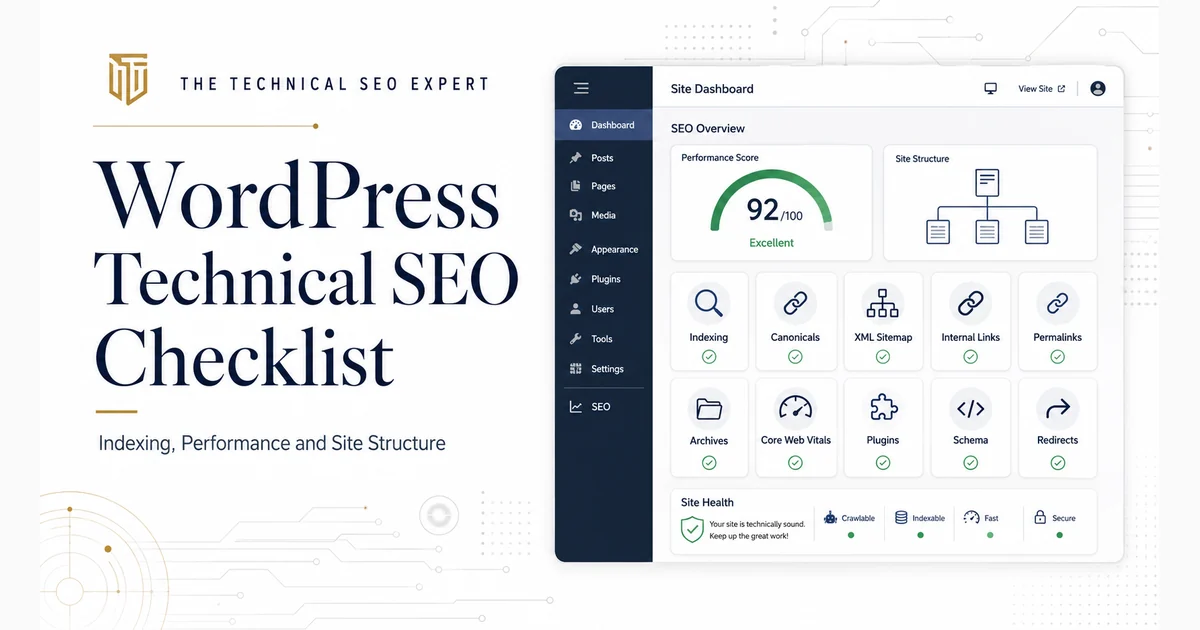
WordPress is capable of supporting technically strong websites. It is also capable of producing several sitemaps, three canonical tags, hundreds of thin tag archives, and a page builder that needs a short rest before displaying the main heading.
The platform itself is rarely the complete problem. The final result depends on how WordPress core, the active theme, plugins, templates, taxonomies, page builders, hosting, and content architecture work together.
A WordPress Technical SEO audit should therefore inspect the final HTTP responses, HTML, rendered content, directives, links, sitemaps, and performance—not assume that a saved dashboard setting is producing the intended result.
For a broader view of how this work is diagnosed, prioritized, implemented, and validated, see what a Technical SEO specialist does.
WordPress controls several technical foundations, including:
Themes and plugins can extend, modify, duplicate, or replace parts of this output. An SEO plugin may manage canonicals and sitemaps, a theme may add structured data, and a page builder may substantially change the rendered HTML and performance.
The audit must therefore evaluate what search engines receive—not only what the WordPress dashboard says should happen.
For a broader view of when to bring in technical SEO specialist support, compare these WordPress-specific checks with the role, tools, and validation workflow of a technical SEO expert.
Start with Settings → Reading → Search Engine Visibility.When “Discourage search engines from indexing this site” is selected, WordPress asks search engines not to index the website. This setting is commonly used on staging sites and can create a serious production issue when it remains enabled after launch.
Also check for:
noindex
directives
X-Robots-Tag
response headers
noindex
rules
Prioritize site-wide and template-level restrictions. An accidental
noindex
affecting every service page matters more than one intentionally excluded thank-you page.
If important content is missing from Google, the broader guide to why Google may not index a page explains the complete discovery, crawling, indexability, canonical, content, and internal-linking workflow.
WordPress can create many kinds of public URLs. Not all of them need to appear independently in search results.
Review:
A useful indexable URL should have:
Do not
noindex
every archive automatically. A well-developed category page can function as a useful topic hub. A tag page containing one post and no unique introduction is less convincing.
The decision should be based on purpose and value rather than the fact that WordPress generated the URL.
| WordPress URL type | Typical decision | What to review |
|---|---|---|
| Core service or information pages | Usually index | Content, hierarchy, canonicals, internal links |
| Useful blog posts | Usually index | Quality, duplication, author and category relationships |
| Important category hubs | Depends on purpose | Unique value, content depth, internal links |
| Tag archives | Frequently require review | Thinness, overlap, number of useful posts |
| Author archives | Depends on site structure | Multiple authors, author expertise, duplication |
| Date archives | Often low value | Duplication of chronological blog listings |
| Internal-search results | Usually exclude | Thin or unlimited query-generated URLs |
| Attachment pages | Frequently unnecessary | Visible content and whether media pages serve a purpose |
| Custom post types | Depends on implementation | Public value, templates, canonicals, sitemap inclusion |
| Pagination | Review carefully | Crawlability, internal links, canonical behavior |
WordPress index bloat occurs when the site exposes large numbers of low-value URLs that compete for crawling and indexing attention without adding meaningful search value.
Common patterns include:
Start by grouping the URLs by template. Determine whether each group supports navigation, topic discovery, or a distinct search need.
Where an archive has no independent value, the solution may involve
noindex
, consolidation, removal from the sitemap, fewer internal links, or eliminating the unnecessary taxonomy. Do not delete taxonomy structures blindly when they support users or valuable topic hubs.
WordPress allows site owners to select and change permalink structures, page slugs, category bases, and tag bases.
Review:
Changing an established permalink structure can affect a large portion of the website. Do not make the change only because another format looks slightly cleaner.
When URLs must change:
Map each old URL to its relevant replacement.
Add a direct permanent redirect.
Update internal links.
Update canonical tags and sitemaps.
Test priority URLs.
Monitor indexing and traffic.
Avoid chains such as:
Search engines and users do not need a guided tour through the website’s design history.
I review indexing, canonicals, sitemaps, themes, plugins, structured data, internal linking, and performance to identify the fixes your WordPress site actually needs.
WordPress core, themes, SEO plugins, sitemap plugins, and specialist extensions may all influence the final technical output.
Check whether:
noindex
URLs are excluded from the sitemap
WordPress core provides XML sitemap functionality, while many SEO plugins generate their own sitemap index. Running several visible sitemap systems is not automatically harmful, but it can create confusing inventories and inconsistent submissions.
Inspect the actual sitemap files, rendered HTML, and HTTP responses instead of relying only on plugin settings.
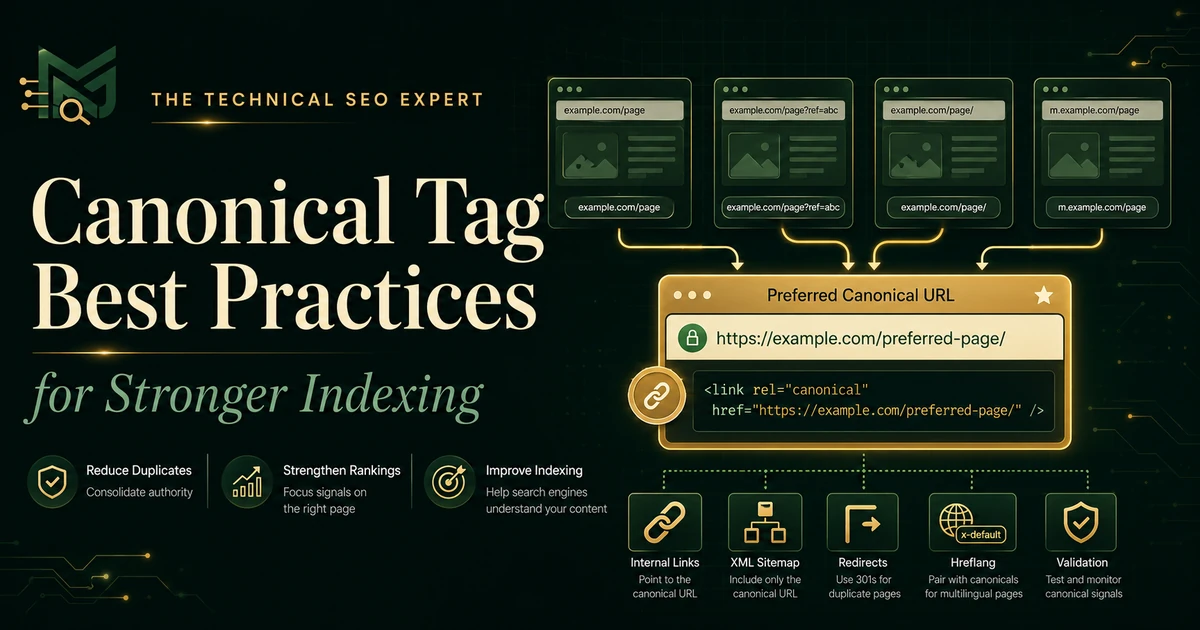
Use the guide to canonical-tag best practices when canonical targets, internal links, sitemaps, and redirects support different URLs.
WordPress provides content containers. It does not automatically design a commercially useful information architecture.
Review the relationship among:
Look for:
Important pages should be reachable through crawlable links and placed within a logical hierarchy.
For example, an authoritative blog article can link naturally to the service or guide that helps the reader take the next step. A page with no internal links may technically exist, but the rest of the website behaves as though it has never been introduced.
Poor WordPress performance can originate from several technical layers. For a focused next step, review Core Web Vitals audit.
Server and hosting
Check:
Check:
Check:
Check:
Use Core Web Vitals and real-user data to evaluate loading performance, responsiveness, and visual stability.
Do not begin by installing another performance plugin. First identify whether the bottleneck comes from the server, WordPress configuration, theme, plugins, page builder, media, or third-party scripts. Otherwise, the new plugin may simply join the meeting.
WordPress themes and SEO plugins commonly generate structured data automatically. For a focused next step, review schema markup audit.
Review:
Common problems include:
Identify which component generates each JSON-LD block before making changes. Removing or adding plugins without understanding the source can replace one conflict with another.
Validate important page templates with the Rich Results Test and check the rendered markup after theme, plugin, or template updates.
Use the following order:
Then consider:
A
noindex
directive affecting every service page should outrank a schema warning on one low-traffic article.
The WordPress Technical SEO case study demonstrates how indexing controls, sitemap cleanup, canonical review, redirects, internal links, page templates, and performance can be addressed as a connected implementation project.
Use several sources of evidence:
Test representative URLs from each affected template.
For example, after removing a template-level
noindex
directive:
Inspect the rendered HTML.
Run Test Live URL.
Confirm that indexing is allowed.
Request indexing for a small number of important pages.
Monitor the Page Indexing report.
Use the complete guide to diagnosing indexing issues in Google Search Console when comparing live output, stored indexed data, crawl results, and Google-selected canonicals.
A plugin setting being saved successfully confirms only that the setting was saved. It does not prove that the HTML, sitemap, redirect, or indexing condition changed.
Yes. WordPress provides flexible URLs, themes, taxonomies, XML sitemaps, publishing controls, and extensive customization. The final Technical SEO quality depends on the configuration, theme, plugins, site structure, hosting, and implementation.
Possible causes include Search Engine Visibility,
noindex
directives, robots restrictions, server errors, incorrect canonicals, weak internal discovery, sitemap conflicts, duplicate archives, rendering problems, or insufficiently distinct content.
Index useful category or tag pages when they function as valuable topic hubs with distinct content and internal links. Thin, overlapping, empty, or automatically generated archives may be better consolidated or excluded.
An SEO plugin is not mandatory, but it can simplify metadata, canonicals, sitemaps, robots directives, and structured data. Installing several overlapping SEO plugins can create conflicting output.
Yes. Themes, SEO plugins, sitemap plugins, and specialist extensions may generate overlapping tags, sitemaps, schema, redirects, or directives. Inspect the final output to determine which component is responsible.
Run an audit after redesigns, major plugin or theme changes, migrations, permalink changes, or unexpected organic declines. Important indexing, uptime, performance, and template signals should be monitored more regularly.
WordPress Technical SEO is not primarily about finding the largest possible list of plugins or changing every archive setting.
Start by confirming that important pages are accessible and indexable. Then review content types, taxonomies, permalinks, redirects, canonicals, sitemaps, site structure, internal links, performance, and structured-data output.
Prioritize site-wide and template-level problems before isolated warnings. Validate the final HTML and search-engine response rather than assuming the WordPress dashboard reflects what Google receives.
When indexing restrictions, plugin conflicts, template problems, or performance issues affect large parts of the website, Technical SEO audit and implementation support can help identify the source, prioritize the work, and verify the corrections.
Clear diagnosis, practical fixes, and excellent communication.
Verified Upwork feedback