How to Find and Fix Technical SEO Issues on Your Website
A practical framework for diagnosing, prioritizing, fixing, and validating technical SEO problems.
Read the article →Diagnose indexing issues by using the Page Indexing report to identify site-wide patterns, then inspecting priority URLs to compare Google’s indexed data with the current live page, crawl access, directives, canonical signals, discovery paths, and rendered content.
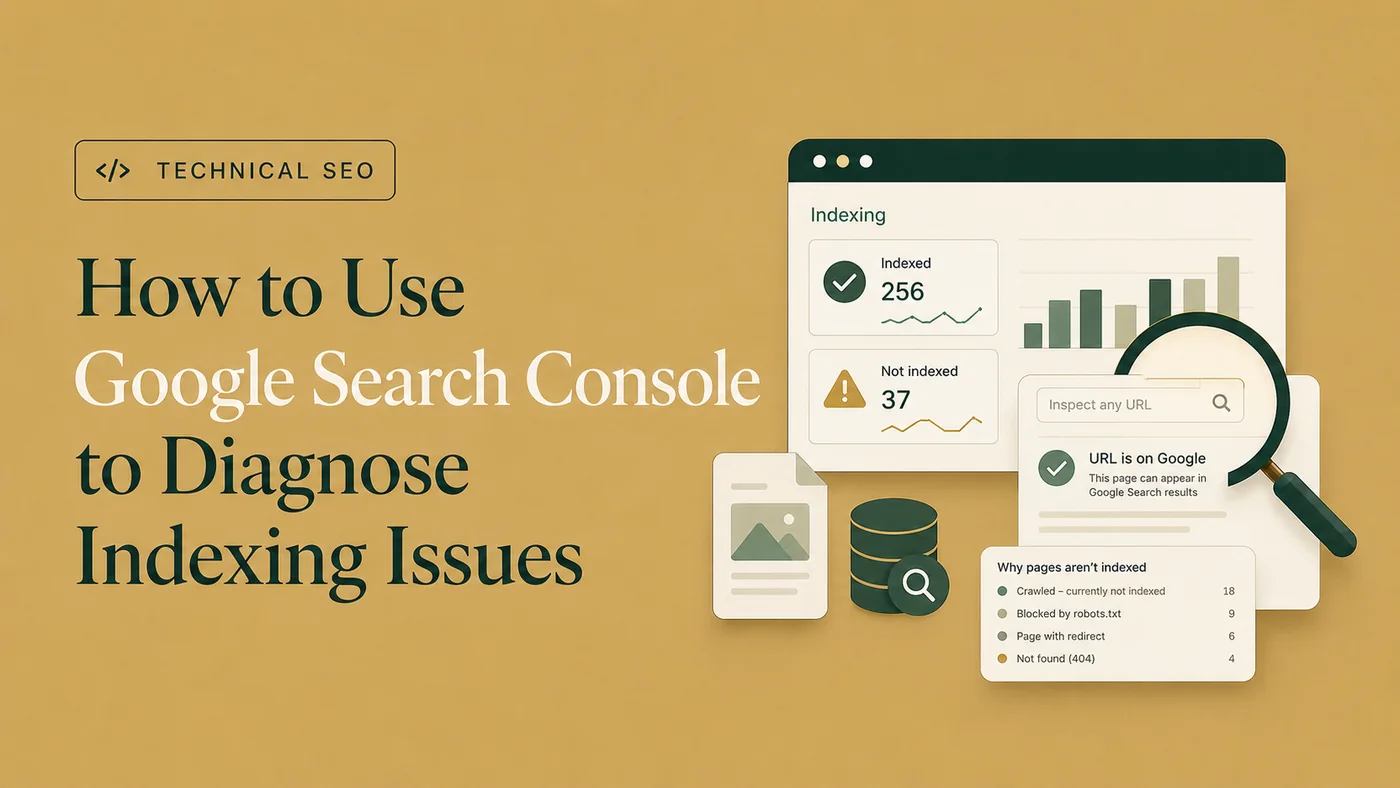
noindex
, canonicals, discovery, and rendering.
When an important page disappears from Google, Search Console is usually the best place to begin —although it will not politely finish the investigation for you.
Google Search Console can show whether Google knows about a URL, whether it crawled the page, whether indexing is allowed, which canonical it selected, and why the page may have been excluded.
However, Search Console reports what Google observed . It does not automatically determine which issue matters, whether the exclusion is intentional, or exactly what change you should make.
To diagnose an indexing issue, use the Page Indexing report to identify patterns across the website, then inspect important URLs individually. Compare Google’s stored information with the live version and review crawl access, HTTP responses, indexing directives, canonical URLs, discovery sources, internal links, and rendered content. Fix the underlying issue before requesting indexing or starting validation.
Google Search broadly processes pages through three stages:
An indexing issue exists when a page that should appear in Google is not added to the index, or when Google indexes a different URL from the one you intended.
Possible reasons include:
noindex
For a detailed explanation of these causes, review why Google may not index a page .
Open the relevant Search Console property and navigate to:
Indexing → PagesThe Page Indexing report provides an overall view of the URLs Google knows about.
It divides them into two broad groups:
It also groups non-indexed URLs by reason.
Common categories include:
noindex
robots.txt
These categories are diagnostic starting points. They are not all errors.
An old URL that correctly redirects should usually appear as Page with redirect. A deleted page may correctly return 404. A parameter duplicate may correctly remain outside the index.
The first question is not, “How do I remove every exclusion?”
The first question is, “Are the right URLs excluded?”
Not by itself.
Many websites contain URLs that should not be indexed independently, such as:
A large number of excluded URLs does not automatically indicate a Technical SEO problem.
Search Console can make the number look dramatic. The number still needs context.
Instead, ask:
Interpret the report by page type, template, purpose, and business value.
Open one of the reasons listed under Why pages aren’t indexed.
Search Console will display information about the category and a sample of affected URLs.
Review the examples for shared patterns:
A repeated pattern often points to a shared cause.
For example, if many service pages suddenly appear under Excluded by
noindex
, the likely problem may be a template or plugin setting rather than dozens of unrelated page edits.
If many URLs appear under Page with redirect, determine whether the redirects are intentional and whether they lead to the correct destinations.
The Page Indexing report identifies the category. It does not replace page-level investigation.
Enter the exact URL into the URL Inspection bar at the top of Search Console.
Depending on the page, Search Console may report:
The inspection details may include:
These fields help establish where the process may have failed.
Always inspect the exact preferred URL. Small differences in protocol, hostname, trailing slash, capitalization, or parameters may represent different URLs.
The initial URL Inspection result describes what Google knows about the indexed or previously processed version.
Test Live URL checks the page as it exists now.
The two results may differ.
For example:
noindex
A successful live test does not mean the page has already been indexed .
It means the current page may be technically accessible and eligible for processing. Google still needs to recrawl and evaluate the updated version.
This distinction is essential when confirming whether a fix has reached the live website.
Review the crawl information in URL Inspection .
When Search Console says crawling is not allowed, inspect the website’s
robots.txt
file:
https://example.com/robots.txtA rule such as:
User-agent: *
Disallow: /services/
would block compliant crawlers from requesting URLs under /services/.
Remember that
robots.txt
controls crawler access. It is not the same as
noindex
.
Blocking a page can prevent Google from viewing its current content and updated indexing directives.
Crawl access may also be affected by:
If the live test cannot fetch the page, the problem may exist in the website infrastructure rather than within Search Console.
A normal live page should generally return a successful 200 HTTP response.
Search Console may instead report:
A redirecting URL is generally not indexed independently. Google evaluates the destination.
A 404 or 410 response indicates that the page is unavailable.
A server error may prevent Google from accessing the page.
A soft 404 can occur when the server returns 200, but the page appears empty, missing, or too similar to an error page.
Review both the technical response and the visible page content.
URL Inspection can report whether indexing is permitted. For a focused next step, review indexability audit.
When indexing is blocked, inspect the page for a robots meta directive:
<meta name="robots" content="noindex">
Also check whether an
X-Robots-Tag
header delivers the instruction.
Accidental
noindex
directives often appear after:
If the page should appear in search, remove the unintended directive.
Run the live test again and confirm that indexing is allowed before requesting another crawl.
I review Search Console, crawlability, canonicals, robots directives, sitemaps, internal links, and page signals to identify the actual indexing blocker.
URL Inspection may display:
The user-declared canonical is the preferred URL specified by the page.
The Google-selected canonical is the URL Google decided to treat as representative.
When you want the inspected page indexed independently, these URLs should normally agree.
If Google selects another URL, investigate whether:
A canonical mismatch is not always an error. Google may have correctly selected a stronger duplicate.
Determine whether it selected the URL you actually want users to find.
Canonical signals should be assessed together rather than in isolation:
URL Inspection may display discovery information such as:
This information can help you understand how Google found the URL, but it may not provide a complete list of every discovery source.
Use it as one piece of evidence.
If an important page has weak discovery signals:
An important page should be part of the website’s navigable structure, not merely listed in a sitemap.
JavaScript-heavy websites may deliver minimal content in the initial HTML and load the main page after rendering.
URL Inspection may provide access to:
Check whether Google can see:
A page can look perfectly normal in a browser while essential content quietly fails to appear in Google’s rendered version.
Compare the rendered result with what a normal visitor sees.
If important content, links, or directives are absent from rendered HTML, the problem may require development work rather than a Search Console configuration change.
Google knows about the URL but has not crawled it yet.
Review:
See the dedicated guide to Discovered – currently not indexed for internal-linking, sitemap, URL-proliferation, server, and crawl-prioritization checks.
Google crawled the page but did not add it to the index at that time.
Review:
For a deeper investigation of content value, duplication, canonicalization, and internal signals, see how to fix Crawled – currently not indexed .
This status is not always solved through a technical change.
Google considers another URL the representative version.
Review:
Google cannot crawl the page because of a robots rule.
Determine whether the restriction is intentional.
Google detected a
noindex
instruction.
Remove it only when the page should appear in search.
The inspected URL redirects elsewhere.
Confirm that the redirect is intentional and that the destination is correct.
The URL returns a missing-page response.
Restore it, redirect it, or leave it removed according to the intended outcome.
Request Indexing is useful after you have:
noindex
It is not a universal repair button.
Requesting indexing does not override:
robots.txt
blocks
noindex
Run the live test first. Confirm that Google can access the current page and that the intended directives are present.
Then request indexing when appropriate.
For some grouped issues, the Page Indexing report provides a Validate Fix option.
Use this after correcting a shared issue affecting multiple URLs.
Examples include:
noindex
was removed
Validation tells Google that the issue has been addressed and asks it to check affected URLs again.
Do not begin validation before the correction is fully implemented.
When several example URLs still fail, validation may not complete successfully.
For one updated page, URL Inspection and Request Indexing may be more appropriate.
Search Console does not always update immediately.
After implementing a change:
Indexing and ranking are different outcomes .
A page can be indexed without earning impressions or clicks. Visibility also depends on relevance, content quality, competition, search demand, links, and other signals.
First confirm that the page is technically accessible and indexable. Evaluate search performance separately.
noindex
been removed?
When Search Console reveals related problems across crawling, canonicalization, sitemaps, redirects, and site architecture, use a broader framework to find and fix Technical SEO issues across the website.
Search Console may identify the category without revealing the full cause. For a focused next step, review Google Search Console indexing help.
Template-level directives, canonical conflicts, rendering failures, migration problems, and generated URL patterns often require evidence from the live site, a crawler, server responses, and page-level comparisons.
When important URLs remain excluded or the diagnosis affects many pages, Google Search Console and indexing recovery can connect Search Console data with live technical evidence and produce a prioritized correction and validation plan.
Start with the Page Indexing report to identify the exclusion category and determine whether similar URLs are affected. Then inspect the exact page with URL Inspection and review crawl access, page fetch, indexing permission, canonical information, discovery sources, and the live URL result before deciding what needs to be fixed.
The Page Indexing report provides a site-level view of indexed and non-indexed URLs grouped by reason. URL Inspection provides page-level evidence for one exact URL, including Google’s indexed data, the last crawl, page fetch, indexing permission, canonical selection, discovery information, and the current live test.
A successful live test means Google can currently access the page and that the URL may be technically eligible for indexing. It does not mean Google has already recrawled, processed, or selected the page for the index. The live test also does not evaluate every condition, including all duplicate-content and canonical-selection issues.
“URL is not on Google” means the inspected URL is not currently included in Google’s index. The page may be undiscovered, blocked, redirected, marked
noindex
, treated as a duplicate, affected by an error, or not selected for indexing. Review the detailed inspection fields and live result to identify the relevant condition.
Open URL Inspection for the exact page and review the User-declared canonical and Google-selected canonical fields. If they differ, compare the page’s canonical tag, internal links, sitemap entry, redirects, URL variations, and content similarity to determine why Google selected another URL as the representative version.
Use Validate Fix after correcting a shared issue affecting a group of URLs in the Page Indexing report, such as a template-level
noindex
, server error, or blocked directory. Use Request Indexing for an individual new or corrected page after confirming with the live test that the underlying issue has been resolved.
Google Search Console is most useful when treated as a diagnostic system rather than an automated fix.
Start with the Page Indexing report to identify patterns. Then use URL Inspection to investigate priority pages individually.
Compare Google’s stored information with the live page. Review crawl access, HTTP responses, indexing directives, canonical signals, discovery paths, internal links, and rendered content.
Most importantly, determine whether the excluded URL should actually be indexed.
The objective is not to force every URL into Google. It is to ensure that important, useful, canonical pages can be discovered, crawled, processed, and considered for indexing.

Clear diagnosis, practical fixes, and excellent communication.
Verified Upwork feedback