Why Is My Website Not Indexed by Google?
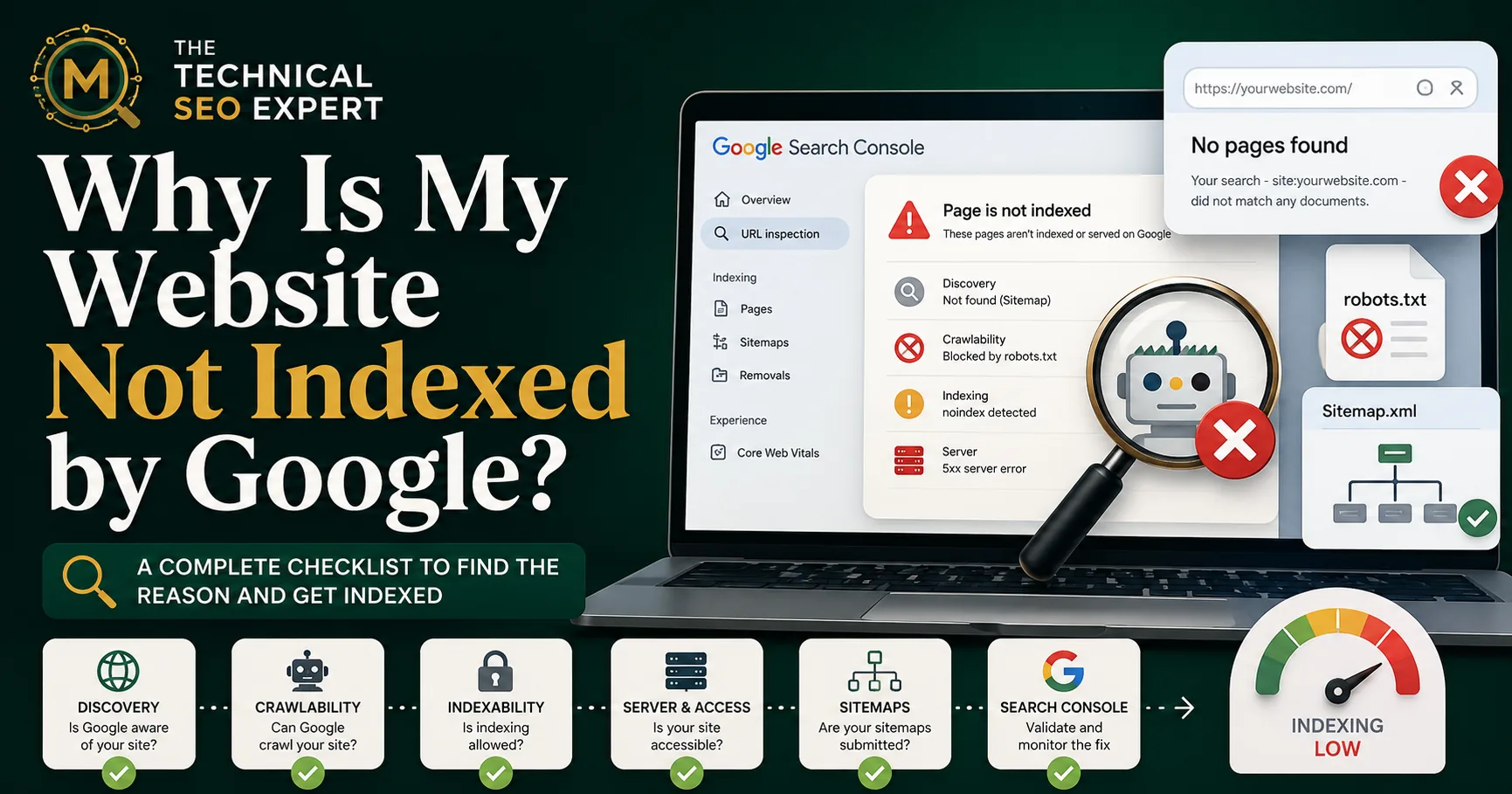
Use this when the homepage, whole site, or many important URLs are missing.
Read the article →Single-URL checks to diagnose why one specific page is missing from Google.
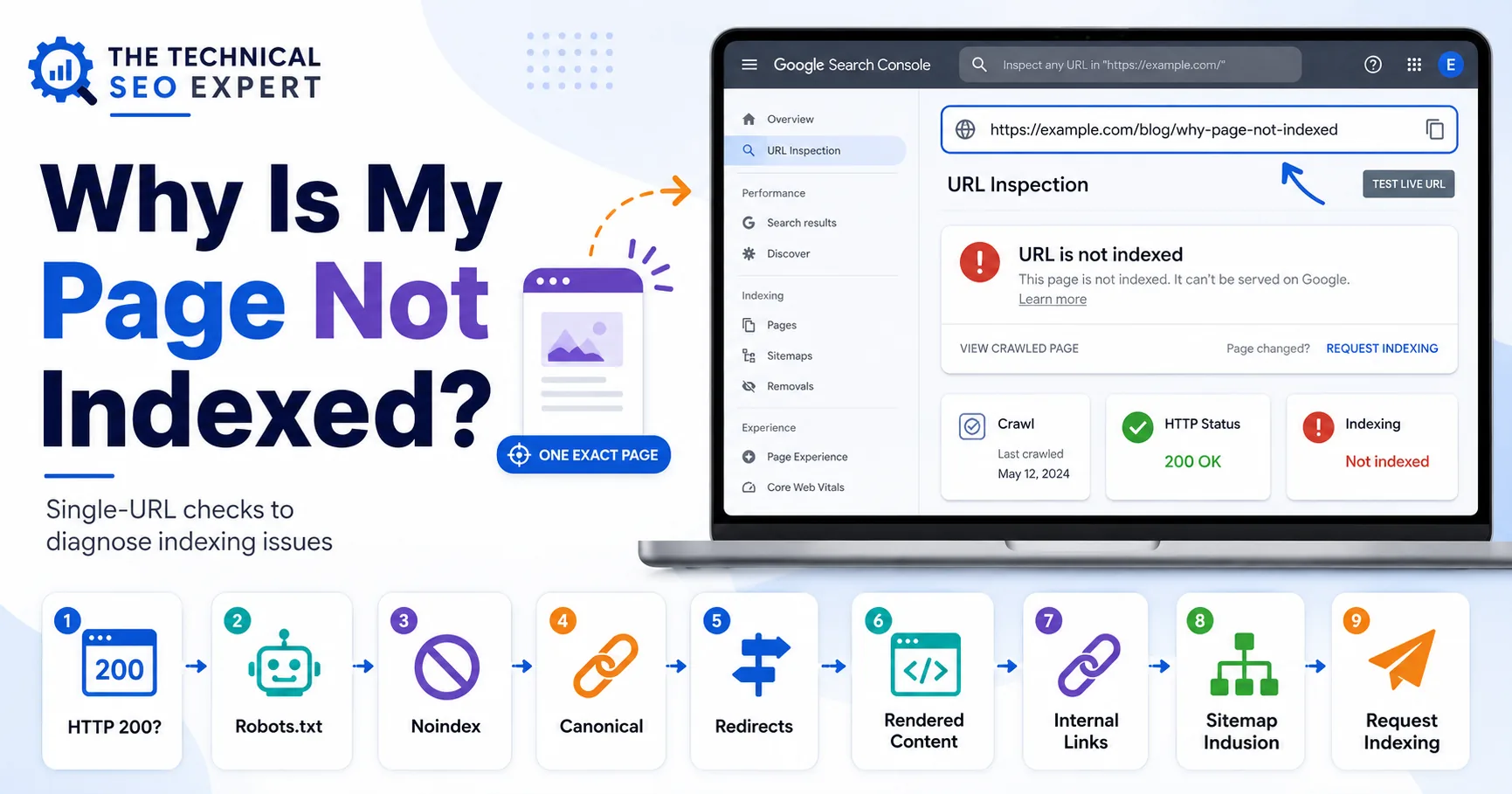
If one page is not indexed by Google, inspect the exact URL in Search Console, test the live version, and check HTTP status, robots.txt, noindex, canonical tags, redirects, rendered content, internal links, sitemap inclusion, and page value.
A page can be published, visible to users, included in the sitemap, and still not be indexed by Google. That feels unfair, but Google is not looking at the WordPress “Published” badge and politely nodding.
When one specific URL is missing, diagnose that exact URL. Do not treat it as a whole-site problem unless many similar pages share the same pattern.
For broader causes across multiple pages, see why Google is not indexing pages.
Open Google Search Console and use URL Inspection.
Inspect the final canonical URL you want indexed. Be careful with:
Search Console can only inspect URLs within the selected property, so make sure you are using the correct property.
Review:
Then click Test Live URL to check the current version. The indexed report reflects Google’s stored information. The live test checks what Google can access now.
“URL is not on Google” means the inspected URL is not eligible to appear in Google Search in its current indexed state.
The reason can vary. It may be:
Open the Page Indexing details instead of guessing. Search Console often gives the first useful clue.
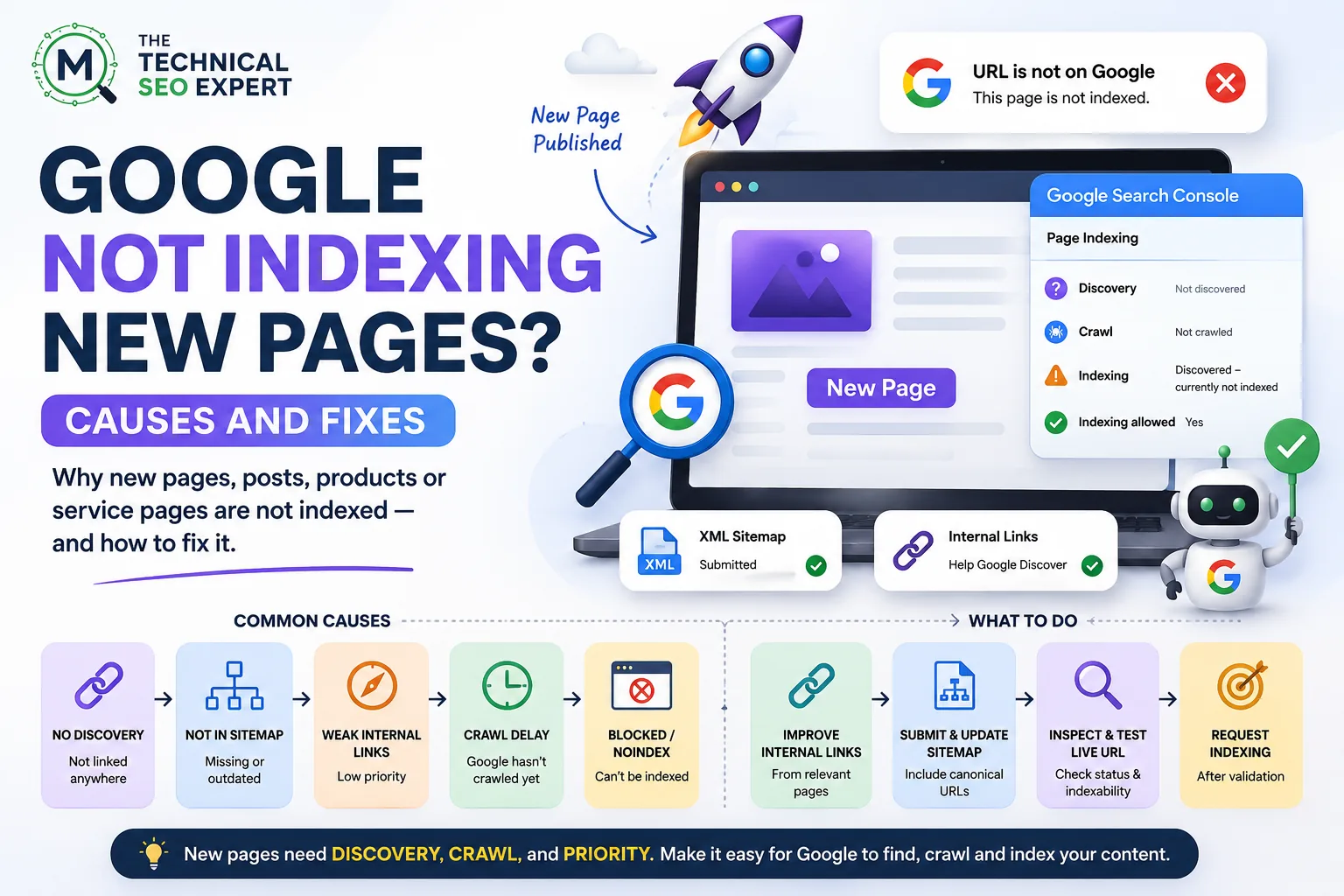
“URL is unknown to Google” means Google has no known indexed information for that exact URL. In practical terms, Google may not have discovered the URL yet.
Start with discovery checks:
This status is not always a noindex problem or content-quality problem. Google may simply not know the URL exists yet.
If the URL is new, strengthen internal links, confirm sitemap inclusion, test the live URL, and request indexing only after the page is accessible and indexable.
“URL is not indexable” means Google’s live test found a condition that prevents the URL from being indexed.
Common causes include:
A page can return 200 and still be not indexable if it contains noindex, declares another canonical, renders empty content, or behaves like a duplicate.
The phrase sounds dramatic, but it is a diagnostic clue, not a final sentence. Find the blocking signal, fix it, and retest.
An indexable page should normally return 200 OK.
Check whether the URL returns:
200 for a valid page301 or 308 if it has permanently moved302 or 307 if temporarily redirected404 or 410 if removed5xx if the server failed403 or 401 if access is blockedRedirecting URLs are usually not indexed; the destination is the candidate. If your intended page redirects elsewhere, inspect the final destination.
For important pages, avoid redirect chains and loops. Google and users should reach the final page directly, not through a scenic route of previous redesigns.
Check three different controls.
Robots.txt controls crawling. If blocked, Google may not fetch the page.
Noindex controls indexing. If Google crawls the page and finds noindex, the page should not be indexed.
Canonical tags indicate the preferred URL among duplicate or similar pages. If the page canonicalizes to another URL, Google may index the canonical instead.
Use the dedicated guide to robots.txt versus noindex if those controls are being mixed.
Use canonical tag best practices if the page points to a redirected, noindexed, broken, or unrelated canonical URL.
If the technical signals are clean, evaluate the page itself.
Ask:
If Search Console shows Crawled – currently not indexed, use the dedicated guide to Crawled – currently not indexed.
If it shows Discovered – currently not indexed, use the guide to Discovered – currently not indexed.
Request indexing after you fix or confirm the page’s current condition.
Before clicking the button:
200.Request Indexing is useful for a small number of important URLs. It is not a magic button, although many website owners have understandably stared at it with hope.
Repeated requests for an unchanged URL do not fix noindex, robots.txt, duplicate content, broken canonicals, or poor internal links.
After implementation:
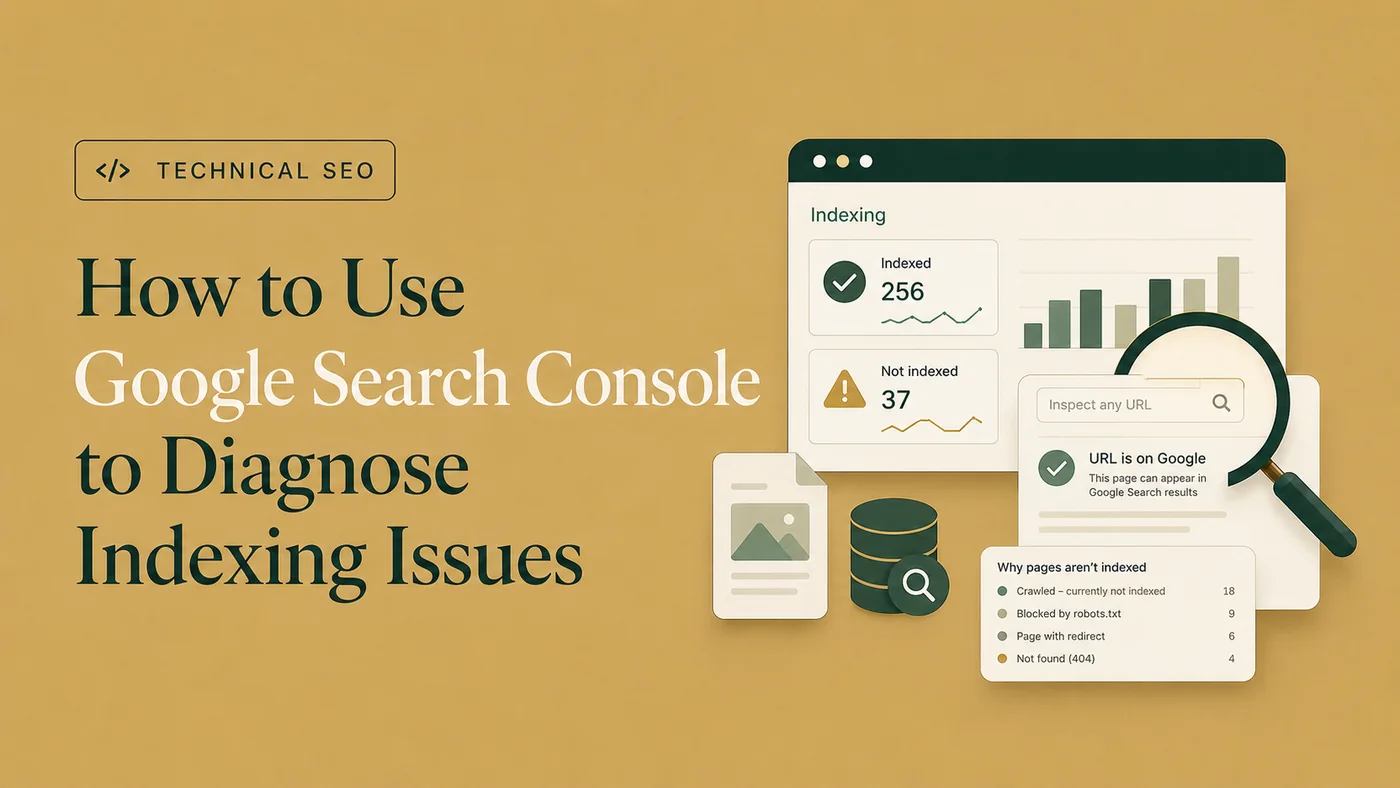
The complete process is covered in the guide to inspect indexing issues in Google Search Console.
If the page still does not index after all signals are clean, compare it against similar indexed pages and evaluate duplication, uniqueness, and internal-link strength.
The page may be undiscovered, blocked, noindexed, redirected, canonicalized elsewhere, returning an error, rendering incomplete content, duplicating another page, or lacking enough distinct value.
It means the inspected URL is not currently eligible to appear in Google Search based on Google’s indexed information. Use URL Inspection details and the live test to identify the reason.
Yes. A 200 response only means the page loads successfully. Noindex directives, canonicals, duplication, soft 404s, weak content, or poor internal discovery can still prevent indexing.
Request indexing after validating the live page for important URLs. Do not request indexing repeatedly before fixing the underlying issue.
Strengthen discovery by adding internal links, including the URL in a clean sitemap, confirming crawlability, and using URL Inspection after the page is live and indexable.
When one page is not indexed, diagnose the exact URL.
Start with URL Inspection, then test the live page. Check status code, crawlability, noindex, canonical tags, redirects, rendered content, internal links, sitemap inclusion, and page value.
Only request indexing after the page is technically eligible and worth indexing. If the issue affects important business pages, page indexing diagnosis support can help identify the blocker and validate the correction.
Clear diagnosis, practical fixes, and excellent communication.
Verified Upwork feedback