Why Is My Website Not Indexed by Google?
Use this when the homepage, whole site, or many important URLs are missing.
Read the article →A site-wide indexing checklist for checking discovery, crawlability, noindex, robots.txt, server access, sitemap signals, and Search Console validation.
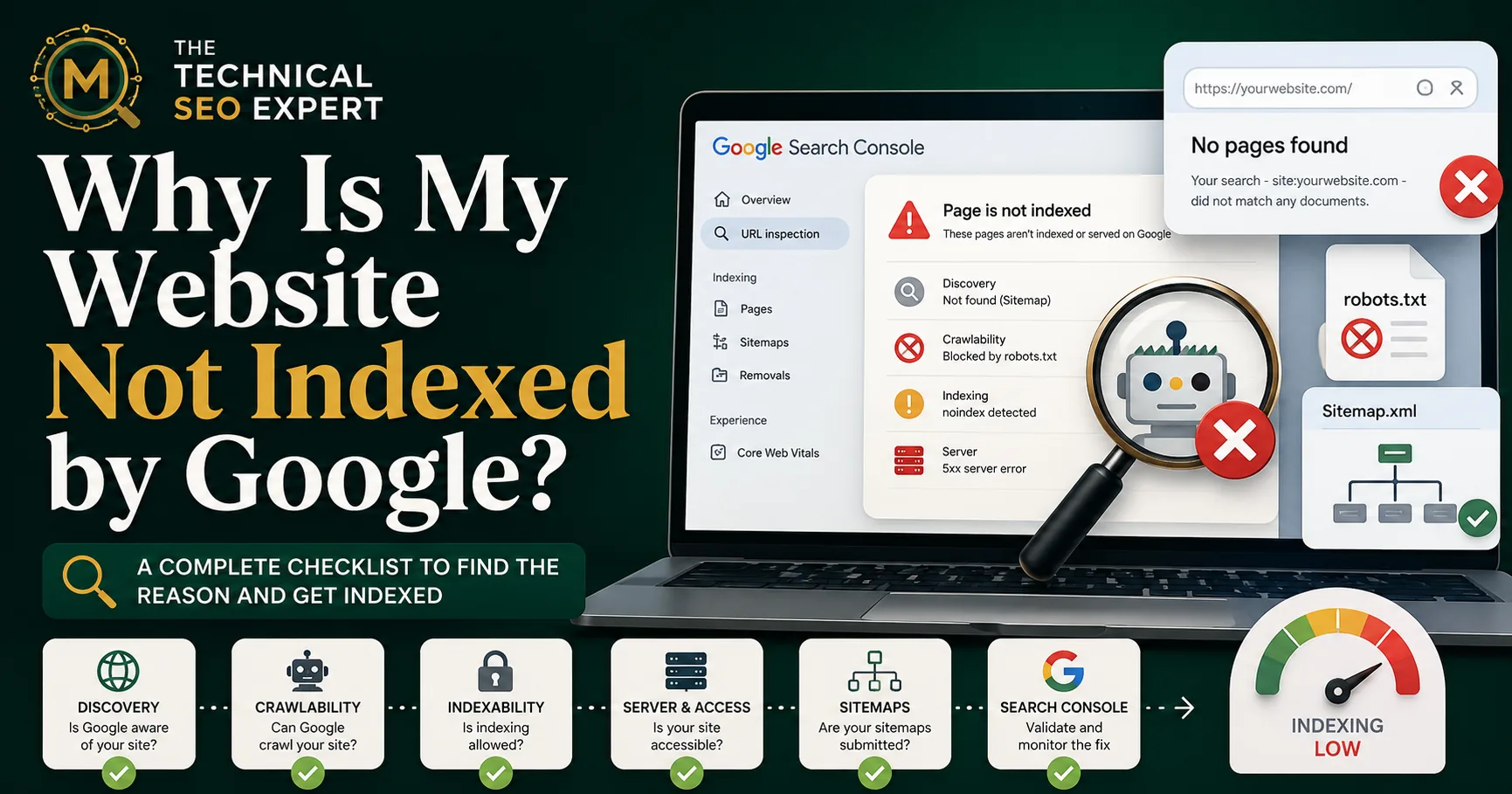
A website can look completely normal to visitors while quietly telling Google, “Please do not enter.” This is inconvenient, especially when the website owner is doing the exact opposite and wondering why Google is not showing the site.
When the whole website, homepage, or many important pages are missing from Google, do not start by rewriting every page. Start by confirming whether the problem is discovery, access, indexing permission, server availability, canonicalization, or Search Console setup.
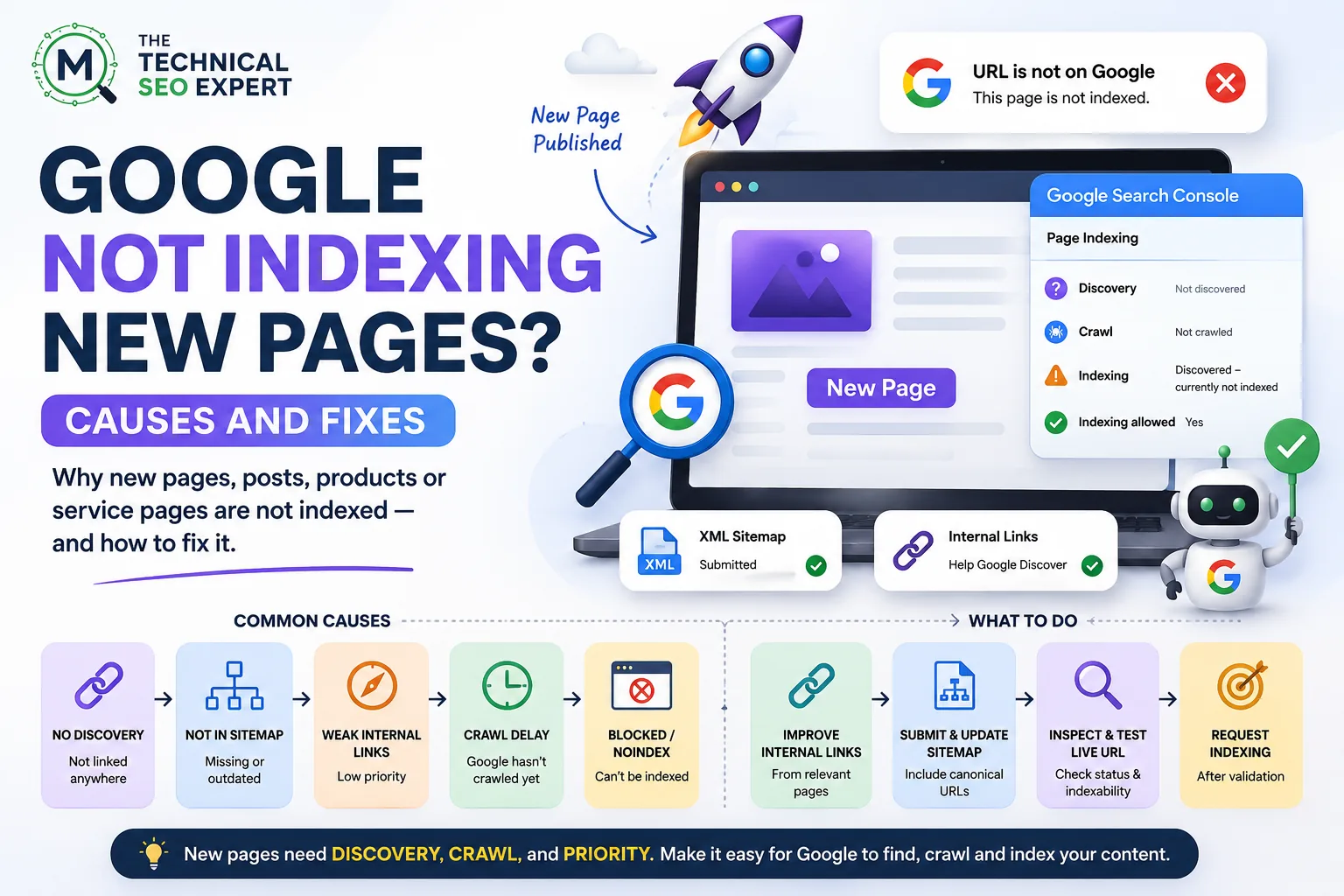
For the broader causes across individual and multiple URLs, see why Google is not indexing pages. This article focuses specifically on site-wide or many-page indexing problems.
Start by separating a site-wide issue from a page-level issue.
A whole-site problem usually involves discovery, crawl access, indexability, server availability, DNS, CDN, firewall, or site-wide CMS settings.
A page-level problem usually involves the exact URL’s status, canonical tag, noindex directive, redirect, content value, internal links, or Search Console status. If only one URL is affected, use a single-page indexing diagnosis instead.
Google cannot index a site it has not discovered.
Check whether the website is connected to Google through crawlable links from other websites, a submitted XML sitemap, internal links from the homepage, Google Search Console verification, a discoverable homepage, and clean navigation with crawlable links.
New websites with no external links and weak internal structure can take longer to be discovered. A sitemap helps Google find important URLs, especially for new or large sites, but sitemap submission is not an indexing guarantee.
In Search Console, check the property setup. A Domain property gives a broader view across protocols and subdomains, while a URL-prefix property only shows data for that exact prefix. If you are checking the wrong version, the site may appear invisible simply because the data is in another property.
The homepage is usually the strongest discovery point for the rest of the website. If the homepage is blocked, redirected incorrectly, canonicalized elsewhere, or unavailable to Googlebot, the rest of the site may also struggle.
Inspect the homepage in Search Console and check:
Common homepage problems include HTTP/HTTPS conflicts, www/non-www conflicts, redirect loops, staging canonicals, and homepage canonicals pointing to another environment.
A site-wide robots.txt block can stop Google from crawling major sections of the website. A site-wide noindex directive can prevent pages from being indexed after Google crawls them.
Check robots.txt, meta robots tags, X-Robots-Tag headers, CMS visibility settings, SEO plugin index settings, theme or template-level directives, staging settings copied to production, and password or maintenance-mode plugins.
This is especially common after redesigns, migrations, or staging launches. Robots.txt and noindex are not the same. Robots.txt controls crawling. Noindex controls indexing, but Google needs to access the page to see the directive.
Sometimes the website is technically indexable, but Googlebot cannot reliably access it.
If the site loads for you but not for Googlebot, the issue may be server-side or security-related. Use URL Inspection, server logs where available, hosting logs, and CDN firewall reports.
The XML sitemap should list important, canonical, indexable URLs that you want Google to discover.
Check whether the sitemap is accessible, submitted in Search Console, uses the correct domain version, excludes staging URLs, excludes redirects and noindex pages, includes the homepage and important pages, uses canonical URLs, and is not blocked by robots.txt.
A sitemap can support discovery, but it should not be the only way Google finds the site. Important pages should also be linked from the homepage, navigation, hubs, categories, or relevant internal pages.
If the sitemap says Success but important URLs remain unindexed, see the guide on sitemap submitted but pages not indexed.
Yes, but keep this in proportion.
Manual actions and security issues are less common than robots, noindex, sitemap, server, or canonical problems. Still, they can affect visibility.
In Search Console, check Manual Actions, Security Issues, Removals, Page Indexing, Sitemaps, and Performance. If Google reports a manual action or security issue, address that directly. If those reports are clean, return to the technical discovery and indexability checks.
After fixing the issue, validate the current condition.
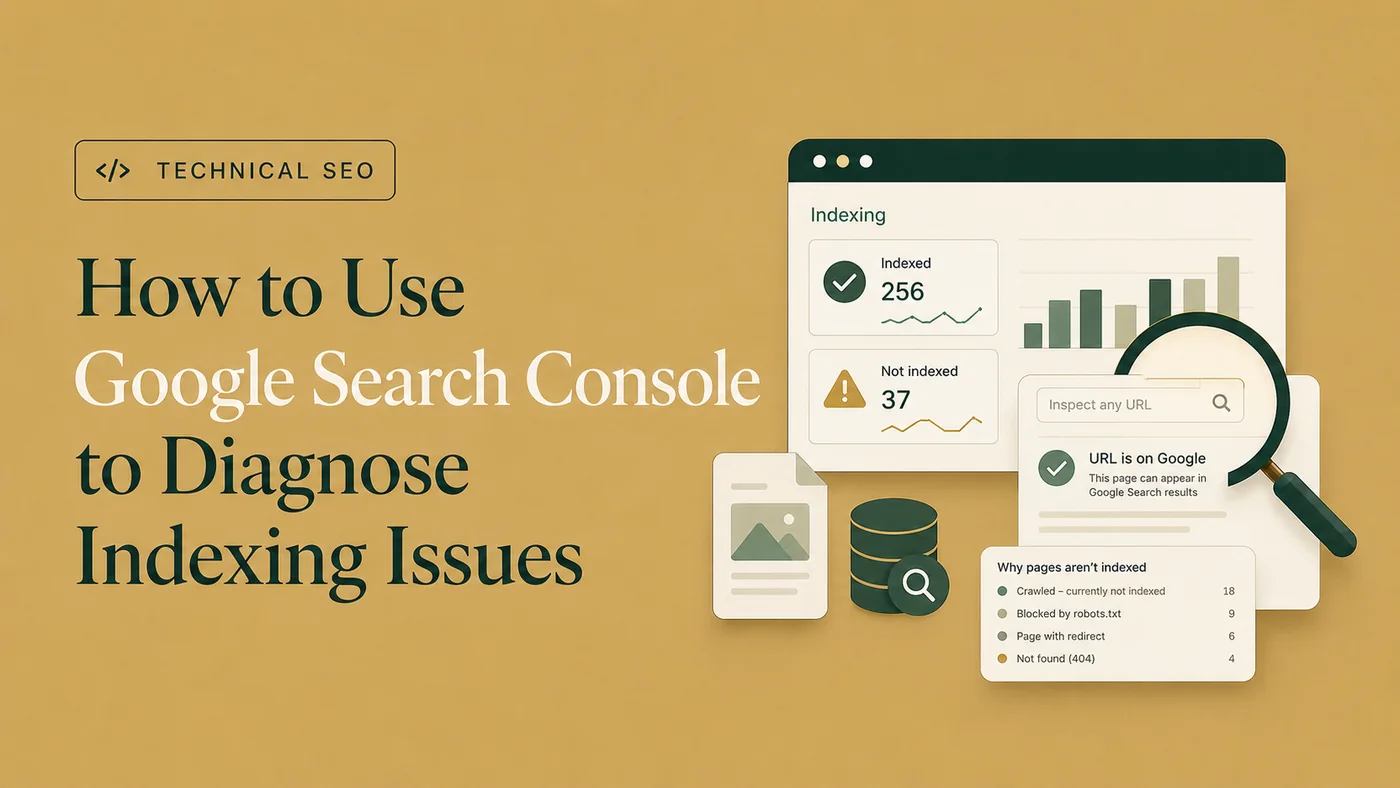
The guide to diagnosing indexing issues in Google Search Console explains the full Search Console workflow.
Remember: a successful live test means Google can currently access the page. It does not mean the page has already been indexed.
Consider professional help when the homepage is missing from Google, many important pages are excluded, Search Console statuses conflict, the site recently launched or migrated, server or CDN rules may be blocking Googlebot, multiple templates contain noindex or canonical errors, developers need precise requirements, or fixes were made but the problem remains.
Site-wide indexing problems can be simple, but they can also sit across CMS settings, templates, server responses, redirects, canonical tags, and Search Console properties. That is when site-wide indexing recovery support can help identify the real blocker and validate the fix.
Your website may not be discovered yet, or it may be blocked by robots.txt, noindex, server errors, DNS problems, firewall rules, staging settings, incorrect canonicals, or sitemap issues.
The homepage may be undiscovered, blocked, noindexed, redirected incorrectly, canonicalized to another URL, unavailable to Googlebot, or affected by Search Console property confusion.
Yes. A broad robots.txt rule can block Google from crawling major sections or the whole site. However, robots.txt is crawl control, not reliable indexing removal.
Use Search Console URL Inspection for the homepage, check sitemap status, review Page Indexing, and search Google for the exact homepage URL.
No. Use Request Indexing for a few important URLs after fixing access or indexability issues. For many URLs, submit a clean XML sitemap and improve internal linking.
When your website is not indexed by Google, start by separating site-wide problems from page-level issues.
Check discovery, homepage access, robots.txt, noindex, server availability, sitemap quality, canonicals, and Search Console validation before requesting indexing.
Clear diagnosis, practical fixes, and excellent communication.
Verified Upwork feedback