Common Technical SEO Issues: Problems, Examples and Fixes
See common Technical SEO issues that affect crawling, indexing, site structure, performance, canonicals, redirects, sitemaps, and structured data.
Read the article →A diagnostic workflow to find the cause, fix the right issue, and validate results.
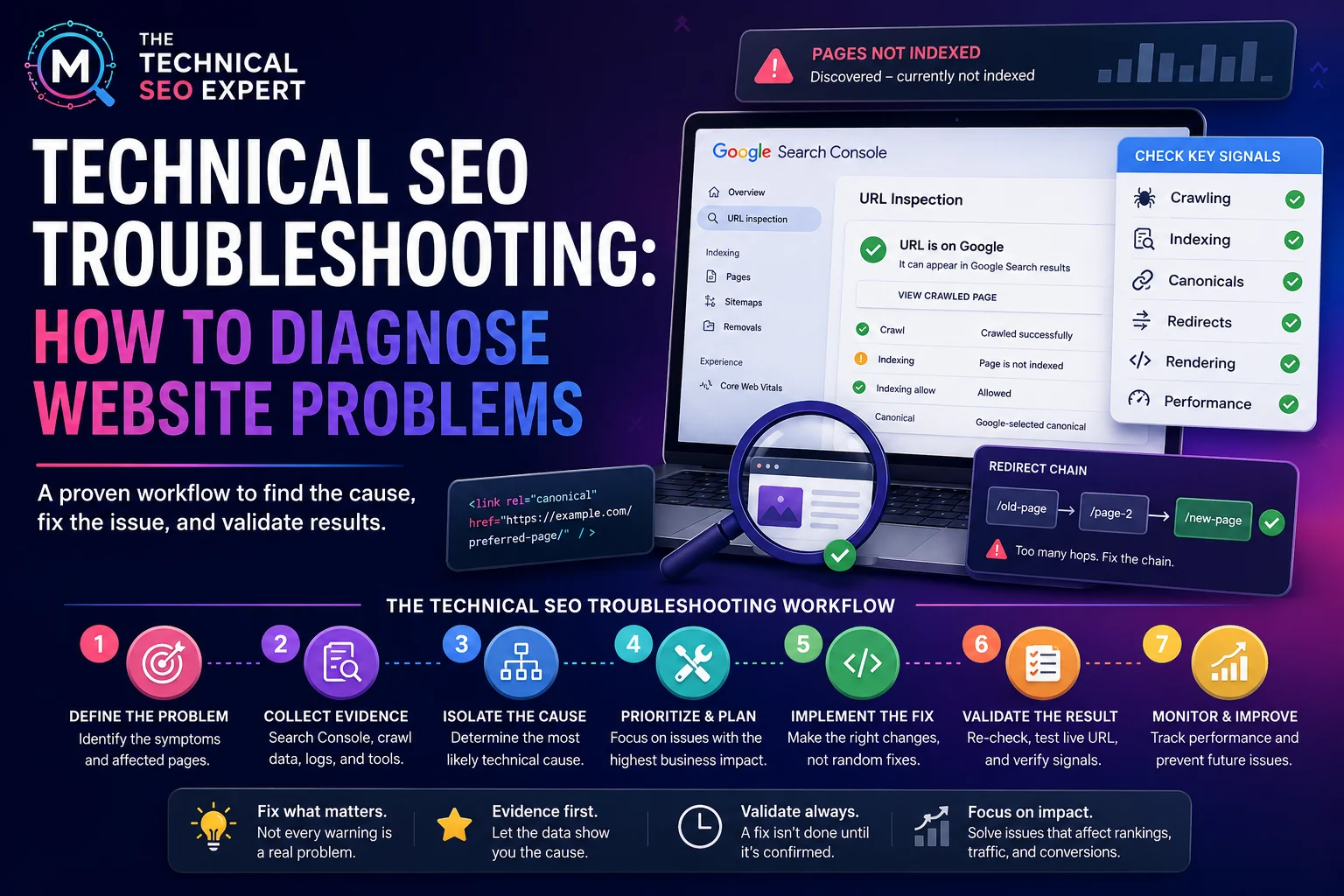
Technical SEO troubleshooting is the process of identifying which pages are affected, collecting evidence, isolating the likely technical cause, fixing the right issue, and validating that the condition changed.
When SEO performance changes, it is tempting to fix the first thing a tool reports. That is efficient in the same way checking every drawer is efficient when you lost your keys outside.
A Technical SEO troubleshooting workflow should begin with evidence. Which pages are affected? When did the problem start? What changed? What does Search Console show? What does a crawler show? What does the live page actually return?
For the broader fixing process, use the parent guide to find and fix Technical SEO issues. This article focuses on diagnosis.
Technical SEO troubleshooting means working from symptoms to causes.
Symptoms may include:
The purpose is not to collect every possible issue. The purpose is to identify the technical condition most likely to explain the symptom.
Google’s Search Console documentation recommends URL Inspection for page-level indexing issues and Page Indexing for broader indexing patterns. (Google for Developers)
Before fixing anything, define the affected URL set. For a focused next step, review organic traffic drop diagnosis.
Ask:
Location pages
Search or filter URLs
Redirected URLs
Recently changed URLs
A template-level problem is different from a single-page issue. If every product page shares the same incorrect canonical, editing one URL is not a fix; it is a demonstration.
Use this distinction early.
Scope
Example
Likely investigation
Site-wide
Entire site noindexed
CMS, robots, server, DNS, Search Console property
Template-level
All product pages excluded
Template, theme, plugin, canonical, structured data
Section-level
Blog posts not indexed
Sitemaps, internal links, content templates, archive structure
URL-specific
One service page missing
URL Inspection, status, canonical, links, page value
This prevents over-fixing. A single broken internal link does not explain a site-wide indexing decline. A site-wide noindex does.
For affected URLs, check:
Use Search Console’s URL Inspection tool to inspect representative URLs. Google states that URL Inspection provides information about Google’s indexed version and allows live testing for indexability. (Google Help)
If the main issue is indexing, use the full guide to diagnose indexing issues in Google Search Console.
If many pages are not indexed, also review the indexing pillar on why Google is not indexing pages.
Redirect and URL problems often appear after redesigns, migrations, CMS changes, product updates, or slug changes. For a focused next step, review redirect audit.
Check:
A redirect chain from an old page to a slightly newer page to a final page may technically work. It is still unnecessary. Search engines and users do not need a guided tour through every version of your site history.
Some pages look fine to users but fail when search engines render them.
Check whether:
For performance, review Core Web Vitals, PageSpeed Insights, server response, JavaScript, images, third-party scripts, and template behavior.
Performance issues rarely explain every SEO problem, but they can affect crawling efficiency, user experience, and conversion paths.
Prioritize by evidence, not anxiety.
Use this order:
Sitemap change
Release deployment
CDN or firewall change
New JavaScript feature
A timeline often turns a confusing SEO problem into a much smaller investigation.
Validation depends on the issue. For a focused next step, review Technical SEO fixes and implementation.
Use:
Google’s URL Inspection live test shows whether the current version may be indexable, but indexed data and live data are not the same thing. (Google Help)
Do not close the task because a plugin setting was saved. Close the task when the URL, template, crawl, or Search Console evidence shows the technical condition changed.
Start by identifying affected URLs, grouping them by template or section, checking Search Console and crawl data, reviewing live status, isolating the likely cause, prioritizing the fix, and validating the result.
Check whether important pages are still crawlable, indexable, canonical, internally linked, rendering correctly, and returning the expected HTTP status.
Collect evidence before making changes. Compare affected and unaffected pages, review recent changes, inspect live URLs, and confirm whether the problem is site-wide, template-level, or URL-specific.
Technical SEO troubleshooting is a diagnostic process, not a race to fix the first warning.
Start with affected pages, collect evidence, identify the most likely cause, prioritize by business impact, and validate the result after implementation.
Good troubleshooting reduces unnecessary fixes and helps teams solve the problem that actually changed search visibility.

I work on Technical SEO audits, Google Search Console indexing problems, crawlability, site architecture, structured data, and implementation support for websites that need clean diagnosis and practical fixes.
About Murat →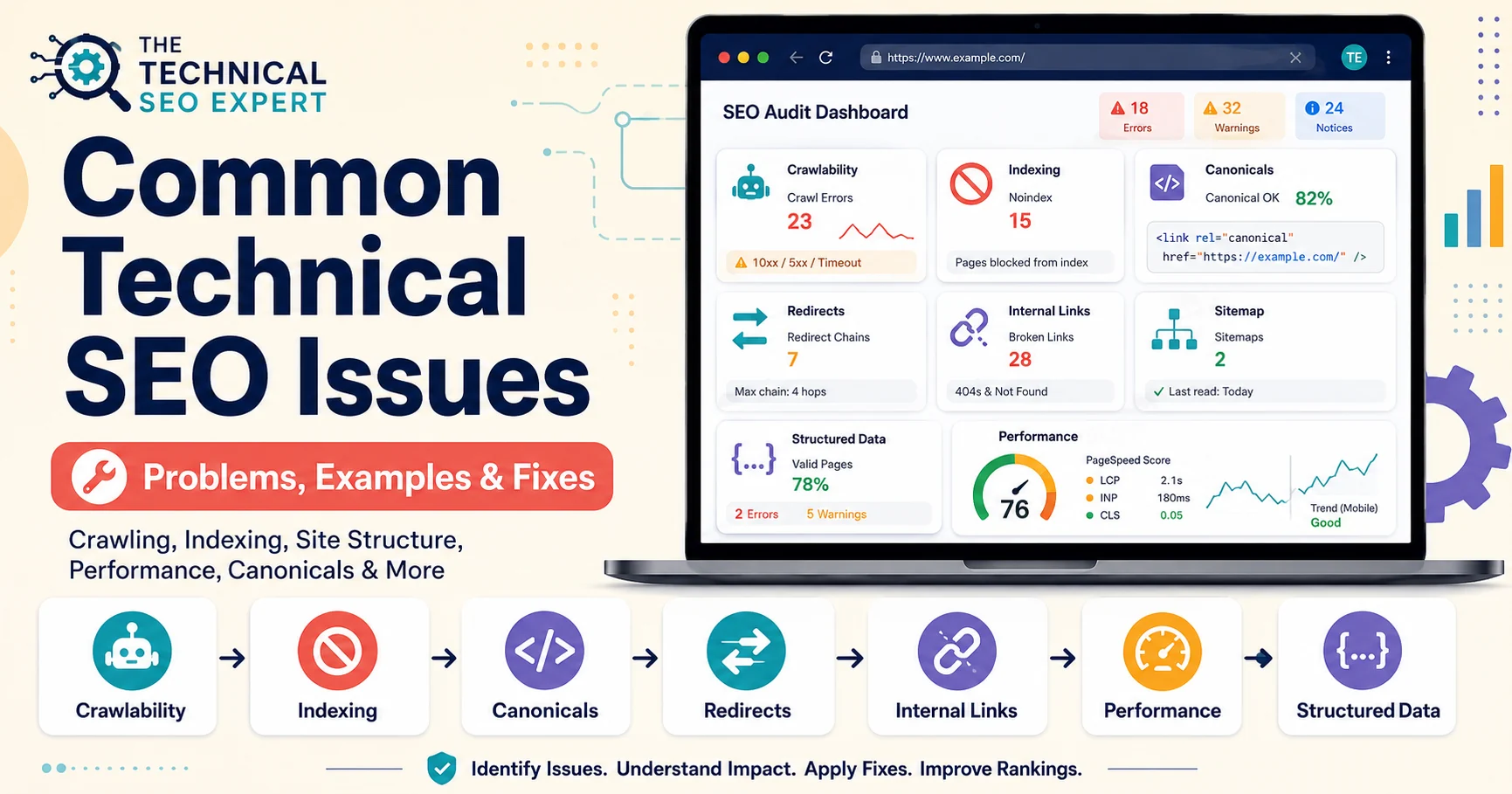

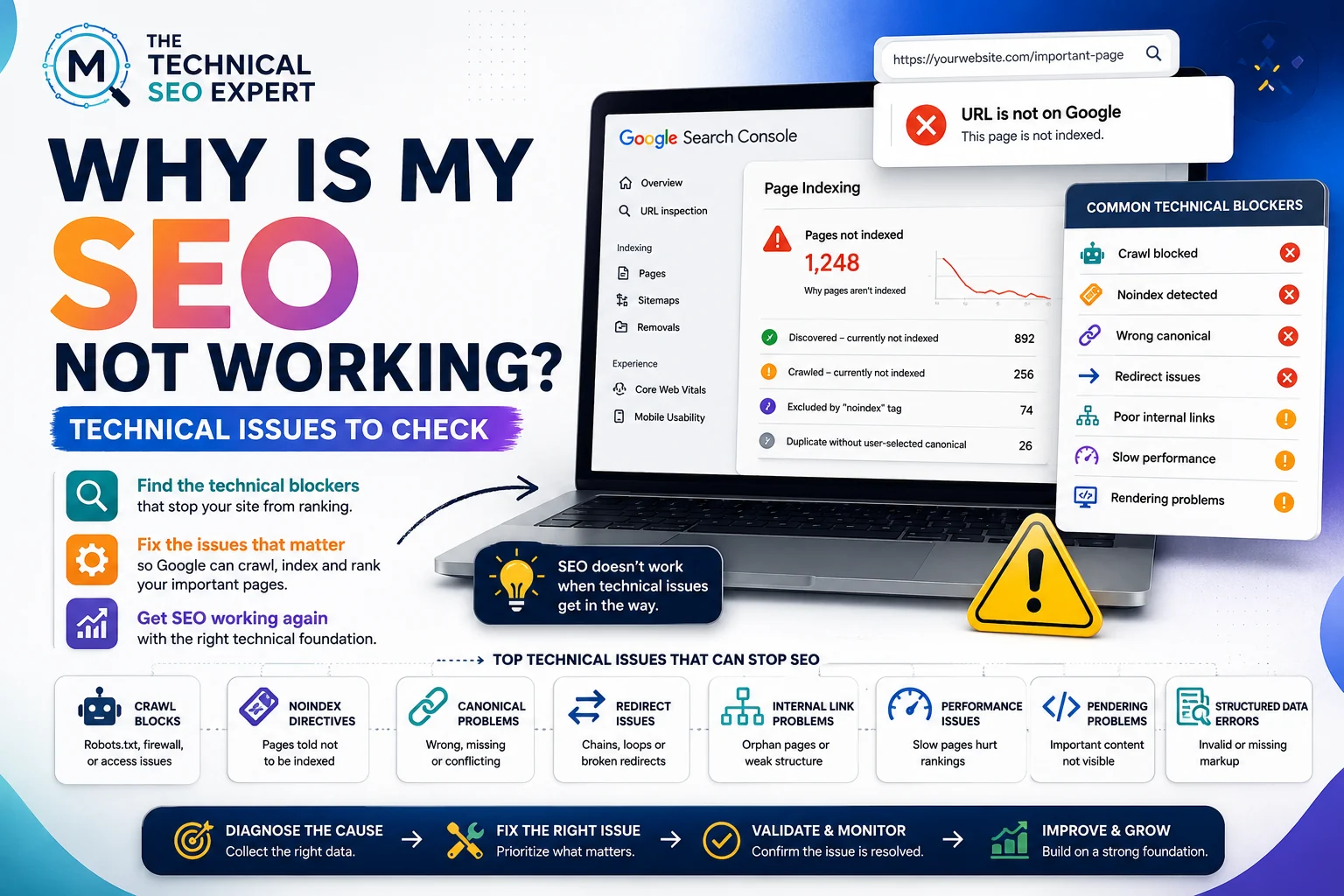
Clear diagnosis, prioritized fixes, and practical implementation support.
Verified Upwork feedback